Where BIM › Documentation › Leave Requests
Before you start
BIM Portal Customer Odoo module installed. The employee needs portal access with Is Employee.
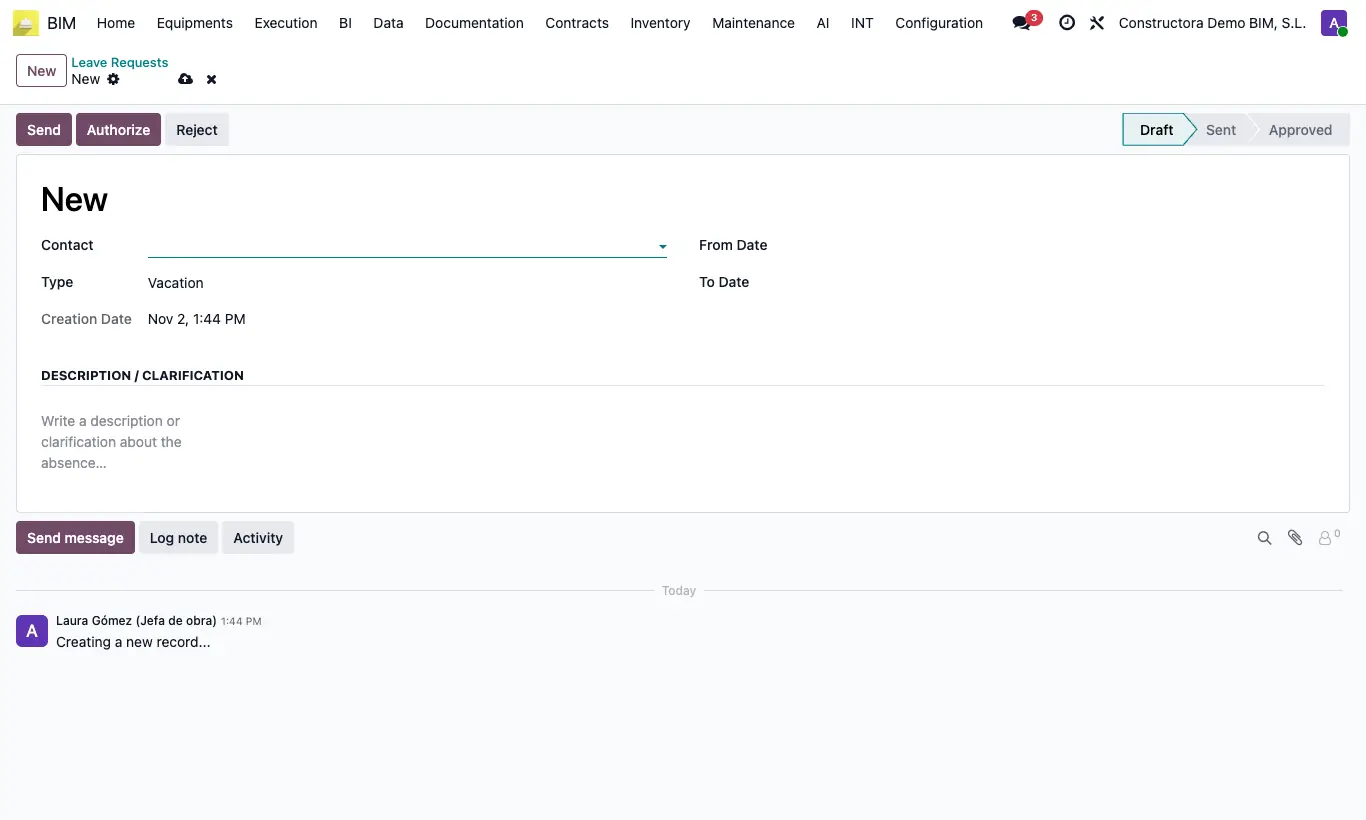
Steps
- Go to Documentation › Leave Requests: those arriving from the portal appear in Draft.
- Open the request and review Contact, Type (Vacation, Permit or Others), From Date, To Date and the Description / Clarification.
- Click Authorize or Reject. A rejected one comes back with Reset to Draft.
- To record one by hand, click New, fill it in and click Send.
Warning
Authorizing only changes the state: it does not block attendance or create the absence in other apps.
In the office there is no check that From Date is earlier than To Date (the portal does check it).
Site note
To give access: on the employee's contact, BIM Portal tab, enter Login Portal, tick Active Access and Is Employee, and click Set / Change Password.