Where Settings › Users & Companies › Users
Before you start
Administrator role. Bim Followers MFH module installed.
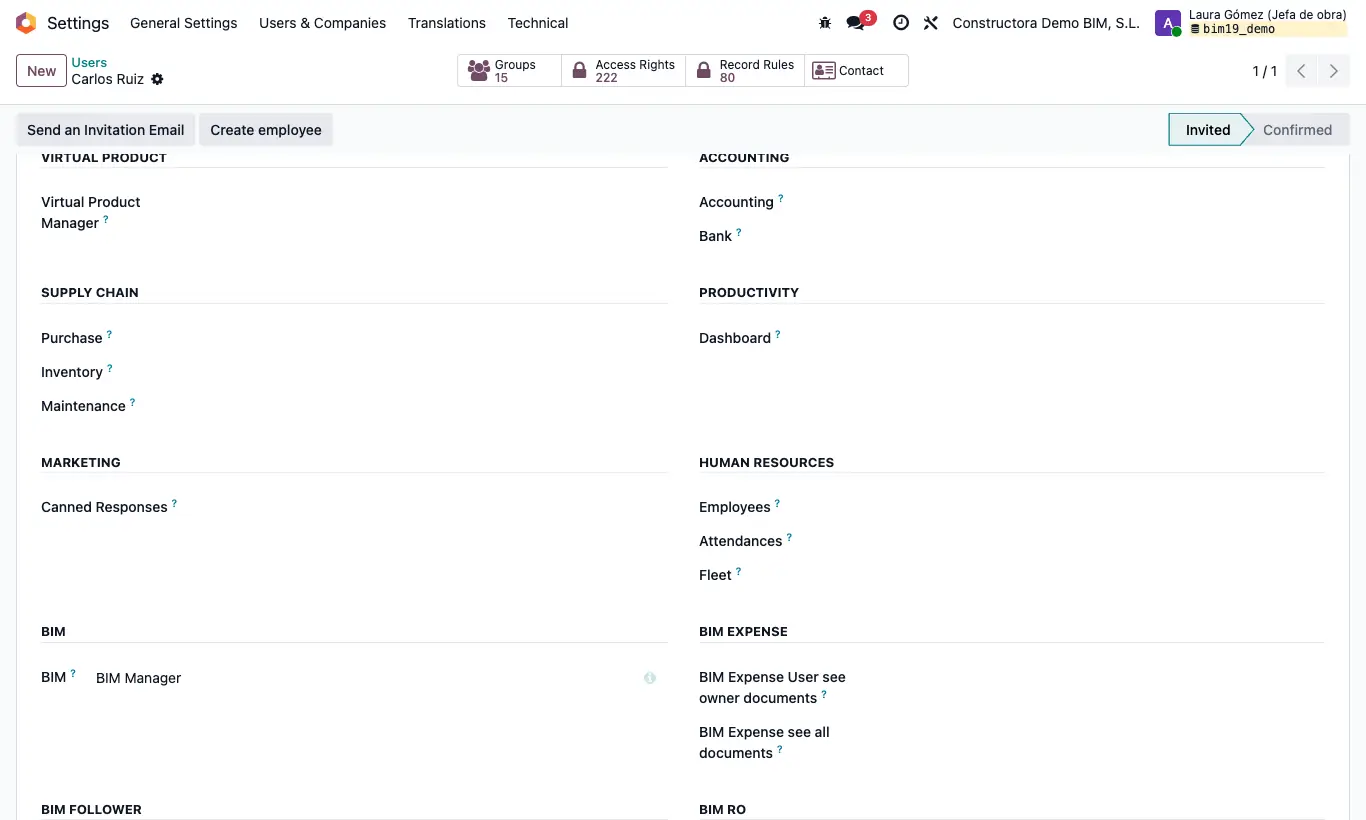
Steps
- Install the Bim Followers MFH module from Apps (remove the Apps filter in the search box to find it).
- Open the user and, in the Access Rights tab, find the Bim Follower section.
- In the Bim Follower dropdown choose Bim Only Follower. Also keep their profile in the BIM dropdown so they see the app.
- Make them a follower of each project they must see: in the project history use Add Followers, or ask them to click Follow.
- Save and ask them to reload the page: in projects and budgets they will only see the projects they follow or have created, and their budgets.
- For whoever must see all of them with the module installed, choose Bim All Follower.
Warning
With Bim Only Follower, being Supervisor of the project or having BIM User see all documents no longer counts: if they do not follow it or have not created it, they do not see it.
Site note
Users without any option in Bim Follower carry on as usual: what they see is decided by BIM User see owner documents and BIM User see all documents.