Where BIM › SAT › Budgets
Before you start
BIM SAT profile.
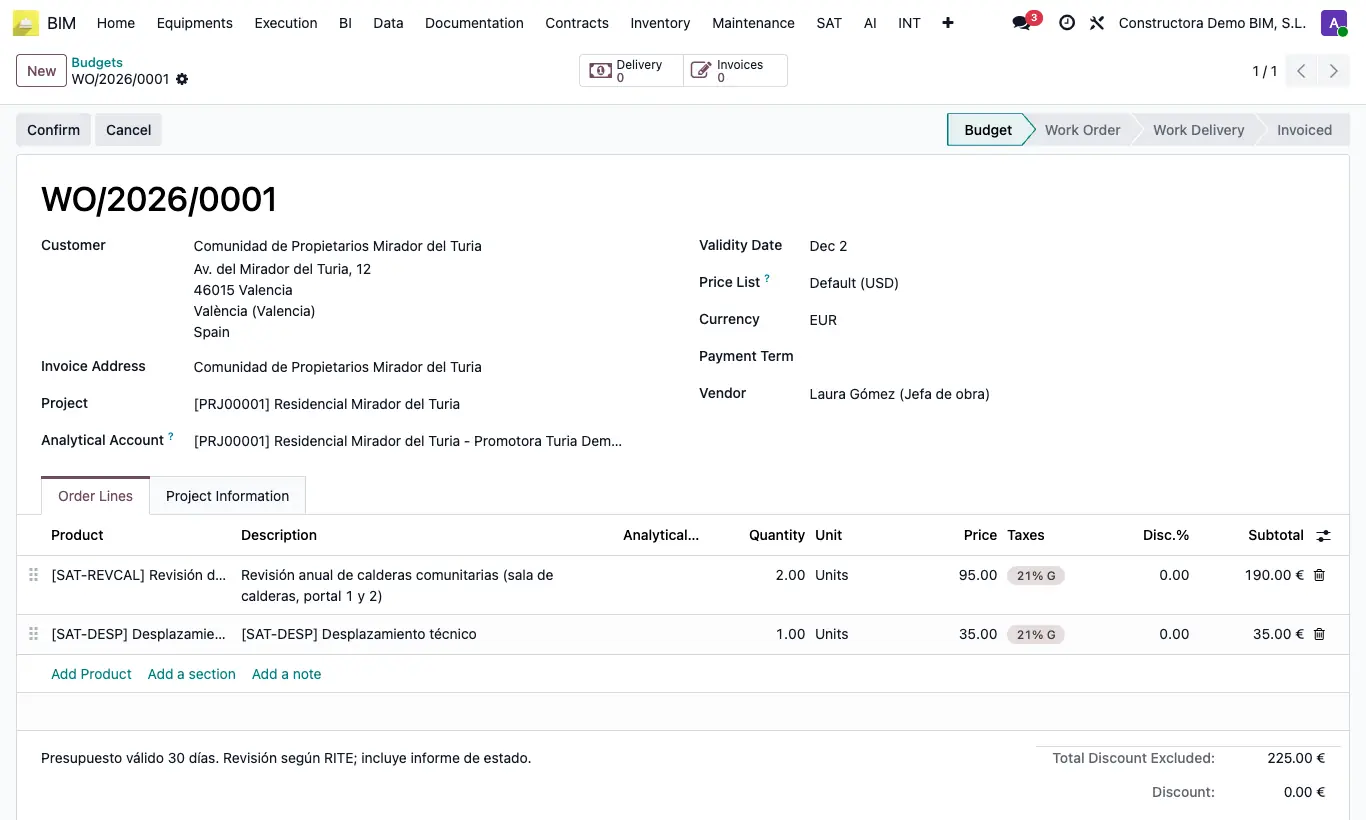
Steps
- Open the quote in BIM › SAT › Budgets.
- For the PDF, open Actions (gear) and choose Work Order: the quote is downloaded with its lines, taxes and totals.
- To send it, click Send message in the chatter and check that the customer is among the recipients.
- Attach the PDF with Attach Files, write the text and click To send.
Warning
SAT has no Send by Email button or template of its own: sending from the chatter does not change the status, which stays at Budget.
Site note
The same report is used in every phase: the title tells you whether it is a quote, a work order or a delivery.