Where BIM › Execution › Programming › RFIs
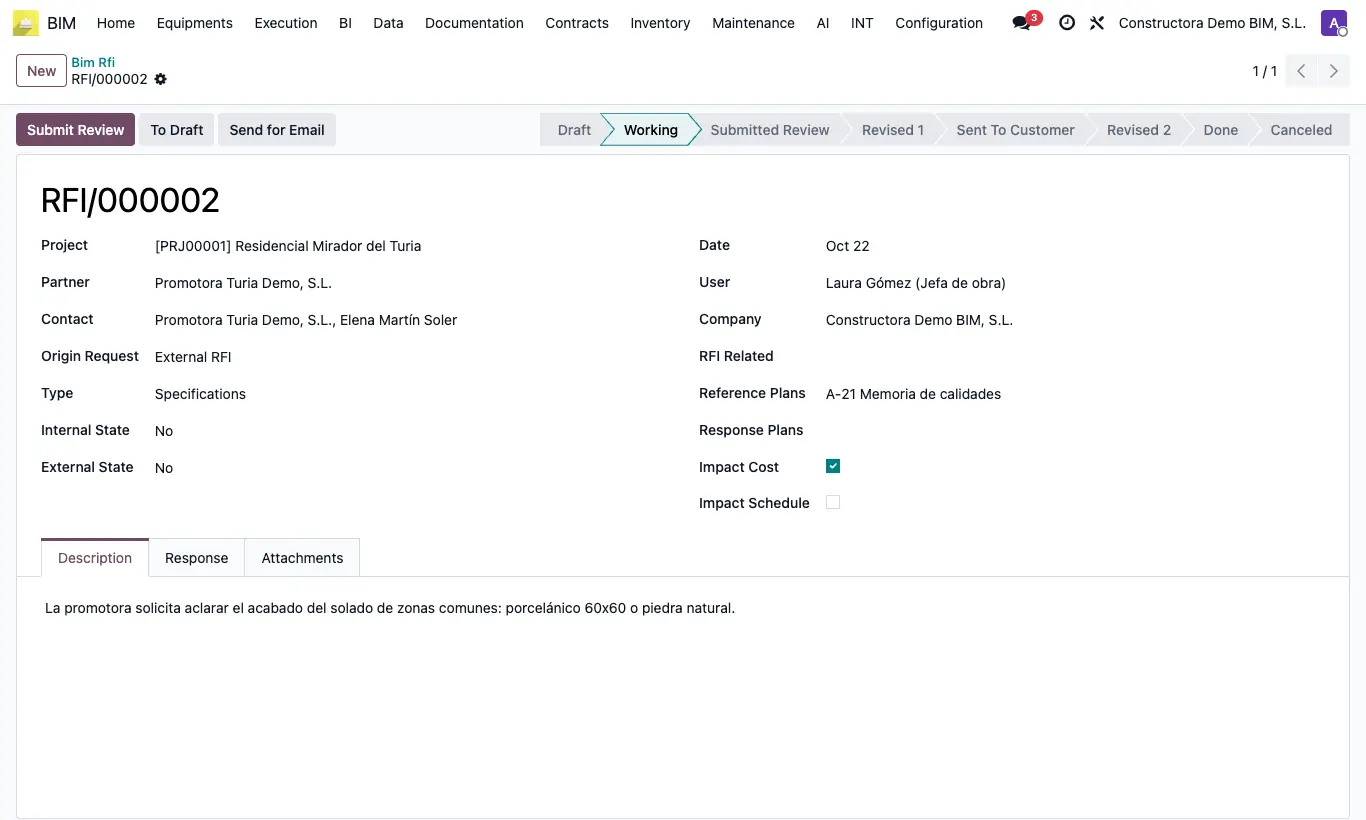
Steps
- Go to BIM › Execution › Programming › RFIs or click RFIs from the project, then click New.
- Choose Project, Customer and Contact; set the Origin Request (Internal RFI or External RFI) and the Type (Clarification, Conflict, Discrepancy, Specifications…).
- Fill in Reference Plans, tick Impact Cost or Impact Schedule and write the question in the Description tab; add files in Attachments.
- Click To Working, write the Response and click Submit Review.
- Set Internal State to Approved and click Review 1; then Send to Client.
- With the client's answer, set External State and click Review 2; finally To Done.
- Click Send for Email to send the RFI PDF to the Contact.
Warning
Review 1 gives the error “You must first approve the internal approval” if Internal State is still No; Review 2 does the same with External State.
The email goes to the Contact's address: with no contact, or no email, it reaches nobody.
Site note
Always tick the impacts: when the project closes they justify each deviation.
Use RFI Related to link a query to the previous one.
The AI button in the history summarises a long RFI.