Where BIM › Execution › Daily Parts › Daily Parts Reports
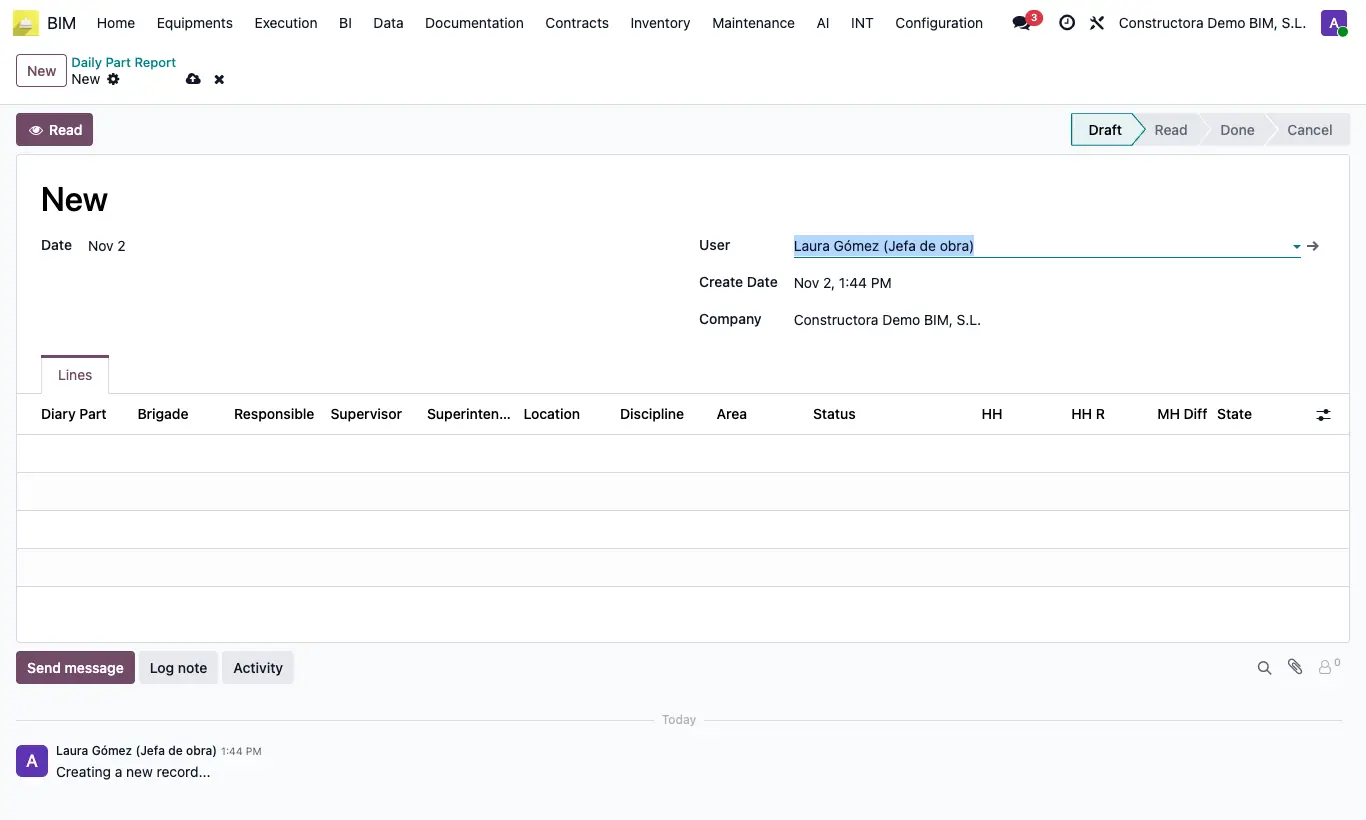
Steps
- Go to Execution › Daily Parts › Daily Parts Reports and click New.
- Choose the Date and click Read.
- Check the lines: crew, managers, Diary Part, state, HH, HH R and MH Diff. Crews without a report appear with no report and 0 hours; if a crew has several reports that day, one line per report appears.
- Rows in red have an hours difference; grey ones are crews with Is Active unticked.
- Click To Done to close the report, or Draft to repeat it.
Warning
Read runs Search Hours on the reports found that are not approved, finished or cancelled: it overwrites their MH Actual with the day's attendance. Approved or finished reports are not touched.