Where Inventory › Operations › Transfers › Receipts
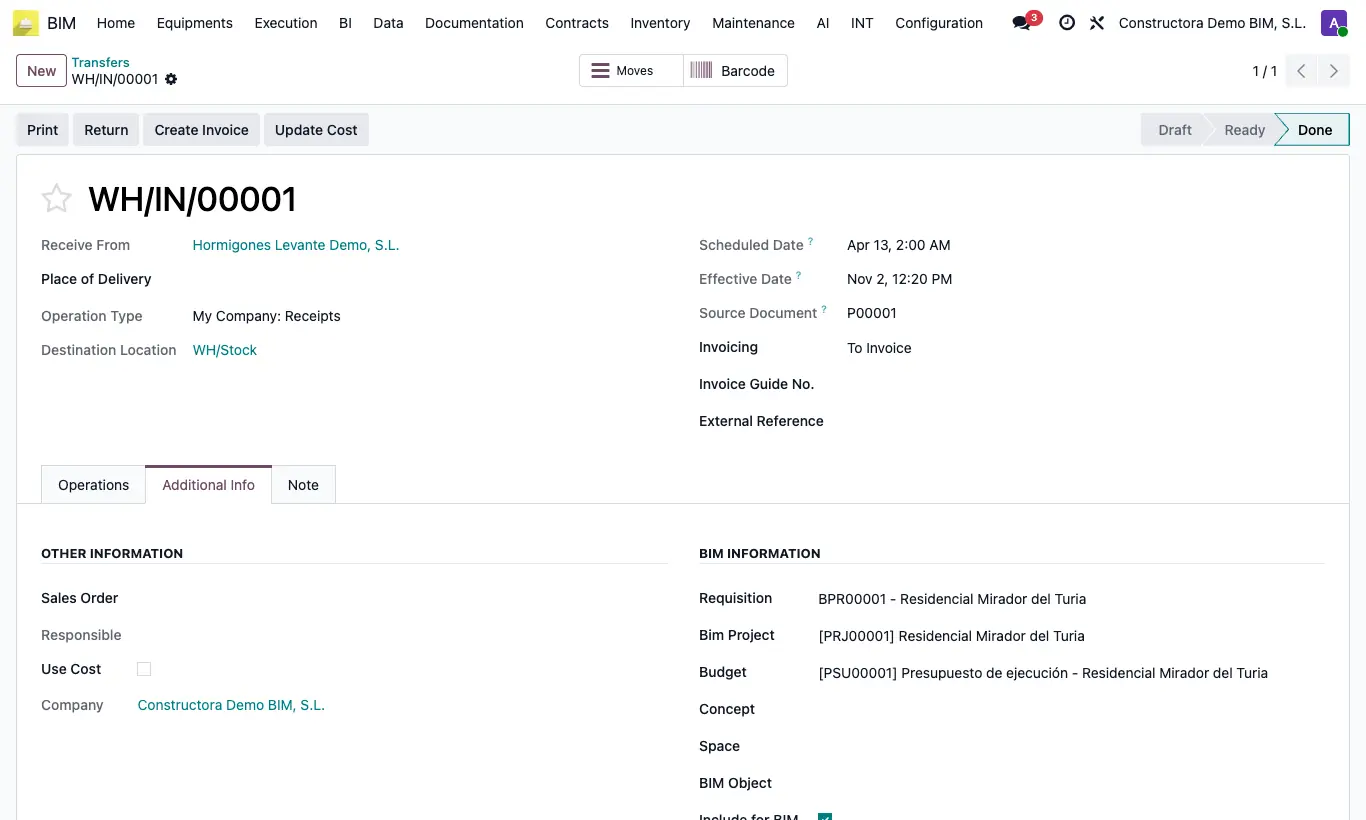
Steps
- Open the receipt from the purchase order or from Receipts.
- In the Additional Info tab, BIM Information section, check the Bim Project, the Budget, the Concept and the Purchase Order, which come from the order, and that Include for BIM is ticked.
- If the purchase comes from a request, the receipt carries the Requisition (request) and the Place of Delivery.
- Enter the quantities received and click Validate.
- If you have the BIM Invoice From Picking profile, click Create Invoice to invoice what was received.
Warning
If the project has a closed expense closing dated after the delivery note date, validating shows “A closed expense closing exists for this project after the date of this document…”.
Site note
On validation the project cost is updated, and what was received counts as Dispatched Quant. in the material request.