Where BIM › Home › Certifications › Payment Status
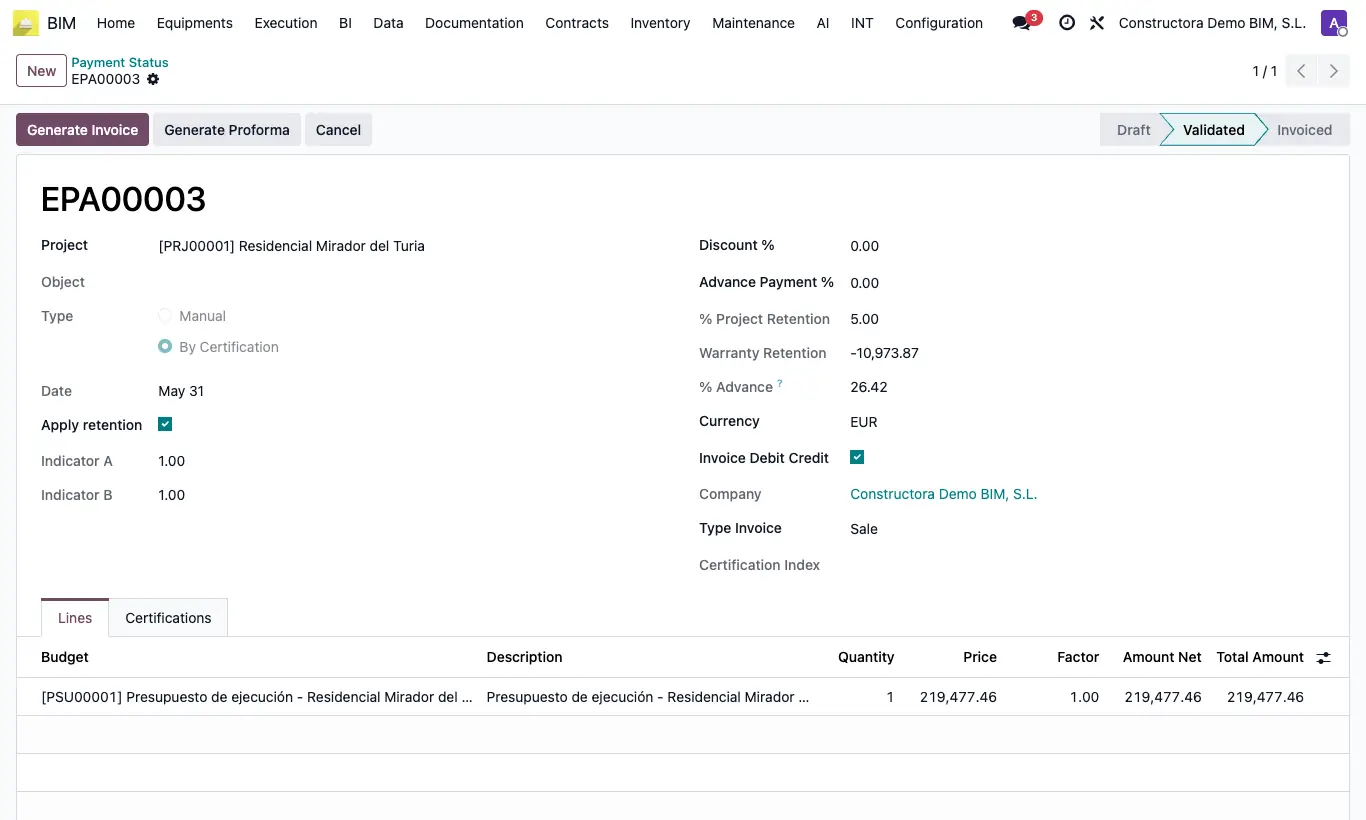
Steps
- Go to BIM › Home › Certifications › Payment Status and open the validated payment status.
- Click Generate Proforma instead of Generate Invoice: the proforma is created with the same lines the invoice would have (retention, discount and advance payment included).
- Send or print it from the proforma itself (Send by Email, Print).
- When the customer accepts it, click Create Invoice on the proforma, or Generate Invoice on the payment status: the invoice is identical to the direct path and the payment status becomes Invoiced.
Site note
If the payment status already has an active proforma, Generate Invoice converts it instead of creating another.