Where Settings › Users & Companies › Users
Before you start
Admin role to assign companies.
Steps
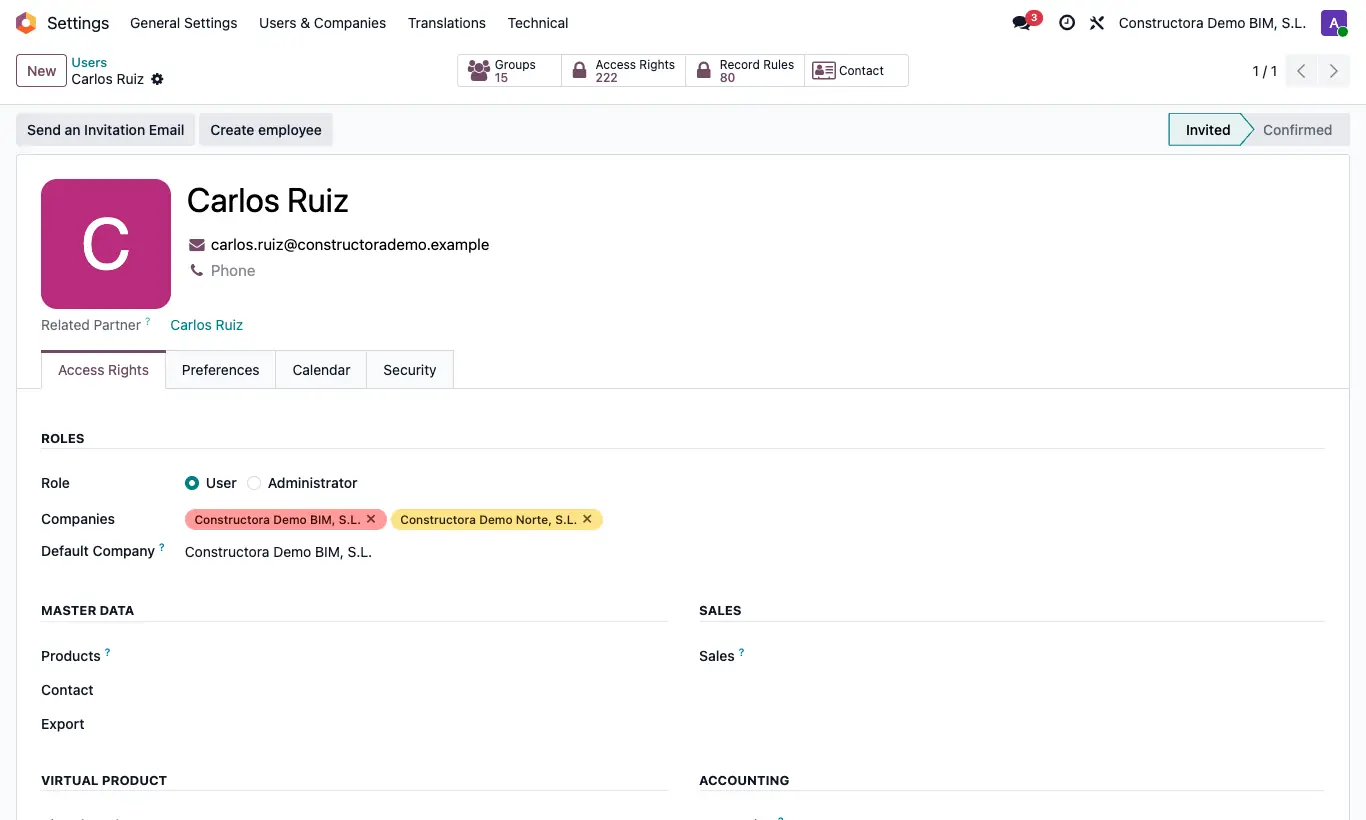
- On the user record, in Access Rights, set their Companies and their Default company.
- Use the company selector in the top bar to choose which ones you work with; you can tick several at once.
- Projects, budgets, items, certifications, payment statuses, daily reports, material requests, cash flows, unit prices, AI models and SQL reports are only shown for the active companies.
- New documents are created in the selector's main company.
- The Bim 2.0 settings belong to each company: choose the company in the selector before changing them.
- In General Config, keys with Company only apply to that company.
Site note
BI dashboards add up the companies ticked in the selector.