Where BIM › Contracts › Contracts
Before you start
Storage Locations enabled in the Inventory settings. Material resources with Track Inventory ticked.
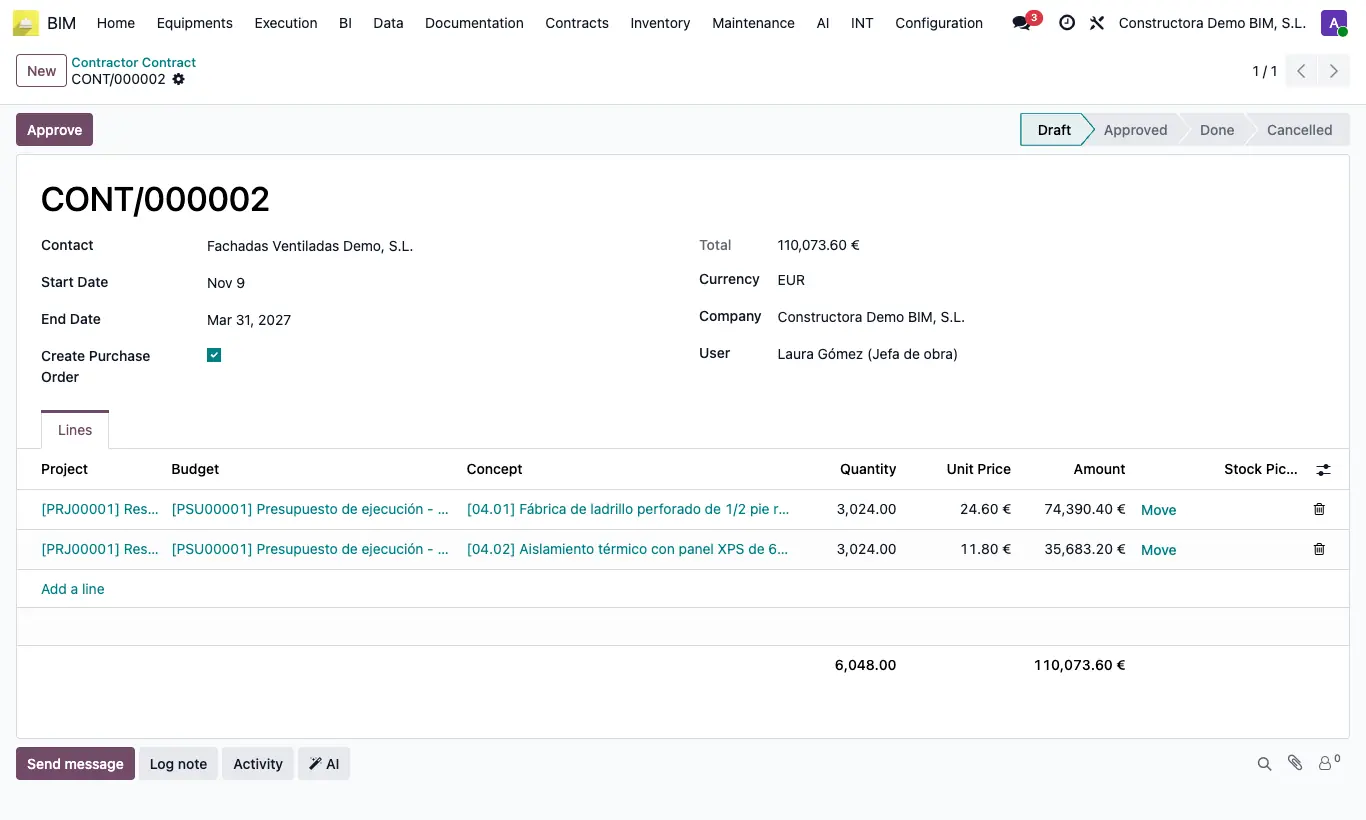
Steps
- Open the subcontractor's contract and go to the Lines tab.
- On the item's line click Move: a draft internal transfer is created with the item's storable materials, in quantity of the resource × quantity of the item, in the subcontractor's name.
- Click the link in the Stock Picking column to open it.
- The transfer comes with source and destination at the project location (or the company's first internal location if the project has none): change the destination and the quantities if needed and validate it in Inventory.
Warning
If the item has no materials with Track Inventory you get “The concept … has no storable materials to move.”.
Without Storage Locations enabled in Inventory you get “There is no active internal transfer operation type in the company. Enable Storage Locations in the Inventory settings.”.
Site note
Each time you click Move another transfer is created; the Stock Picking column shows the latest.