Where Settings
Before you start
Administrator role for what lies behind it.
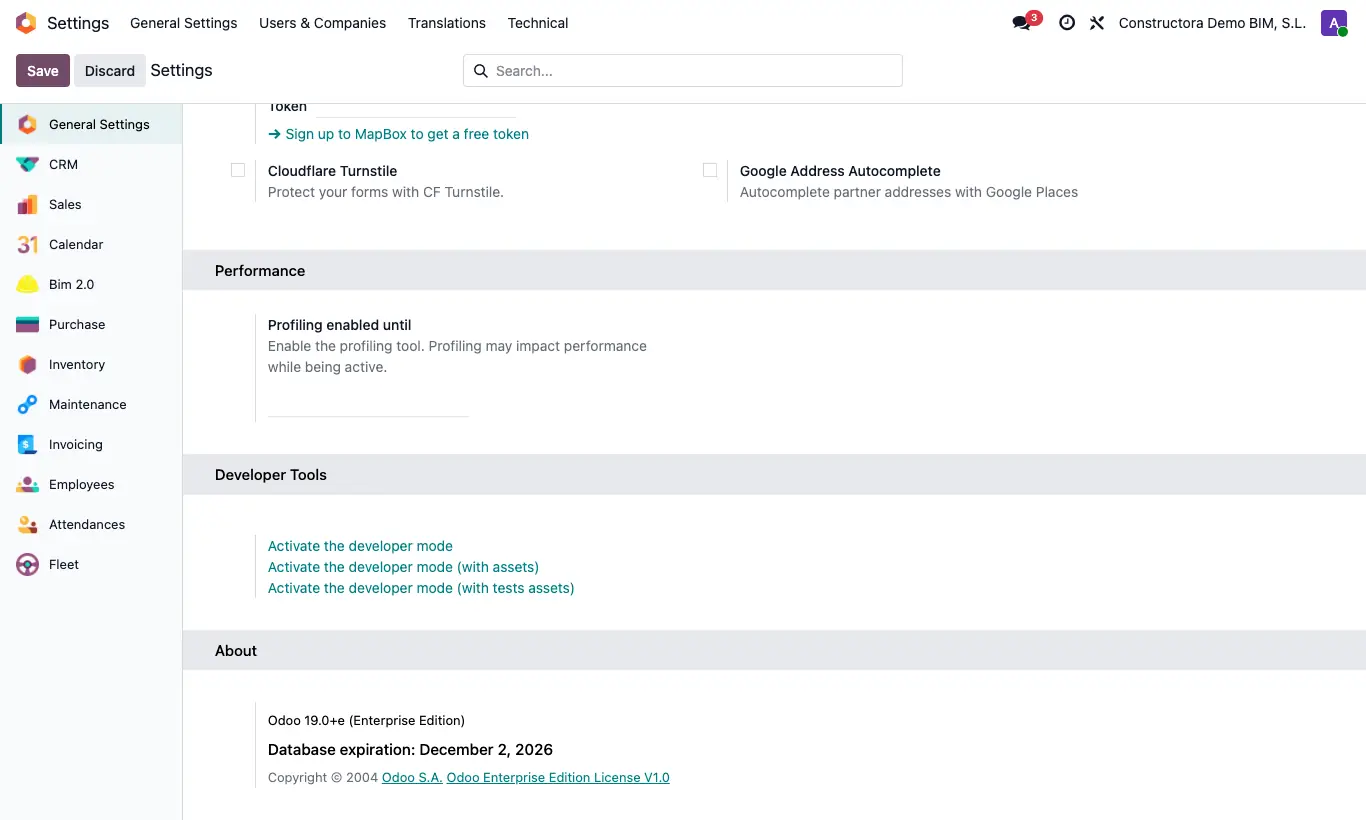
Steps
- Open Settings and scroll down to Developer Tools.
- Click Activate the developer mode. The page reloads.
- Now you see Extra Rights on the user form (permissions without a section, such as Picking Cost Value), Settings › Users & Companies › Groups and the Settings › Technical menu.
- If you hover over a field's label you will see its technical name: it is the one typed in the states' Required Fields.
- To leave, go back to Settings and click Deactivate the developer mode.
Warning
Developer mode does not give permissions, it only shows options. What you change in Settings › Technical affects the whole database.
Site note
You can also activate it by adding ?debug=1 to the page address.
You do not need it to give the BIM 2.0 profiles: they are seen on the user form without it.