Where Budget › Modify button
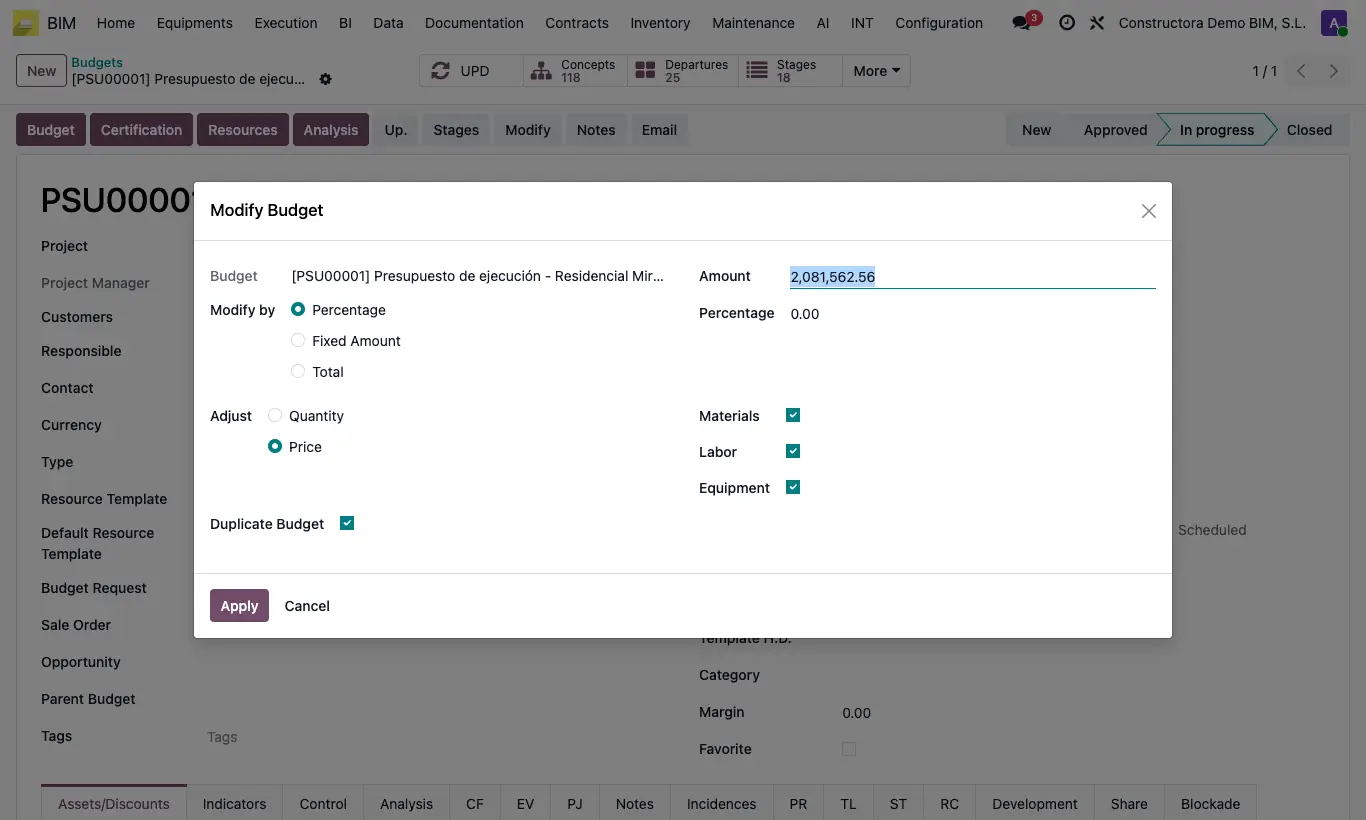
Steps
- Open the budget and click Modify. The Amount field shows the current total.
- In Modify by choose Percentage, Fixed Amount or Total.
- With Percentage, type the final percentage over the current one: 110 raises it by 10 % and 90 lowers it by 10 %. With Total, type the New Amount and the program calculates the percentage.
- In Adjust choose whether you change the Price or the Quantity of the resources.
- Check which resources it affects: Materials, Labor and/or Equipment.
- Leave Duplicate Budget checked to apply the change to a copy and leave the original untouched.
- Click Apply. The resulting budget is recalculated and the change is noted in its history.
Warning
With Fixed Amount, the amount is added to each resource (not to the total): use it with care.
With Total, the price of all resource types is always adjusted.
With no resource type checked, "You must select at least one concept" appears.