Where Project › Limits tab
Before you start
BIM Manager or BIM Purchase Without Limits profile to see the box.
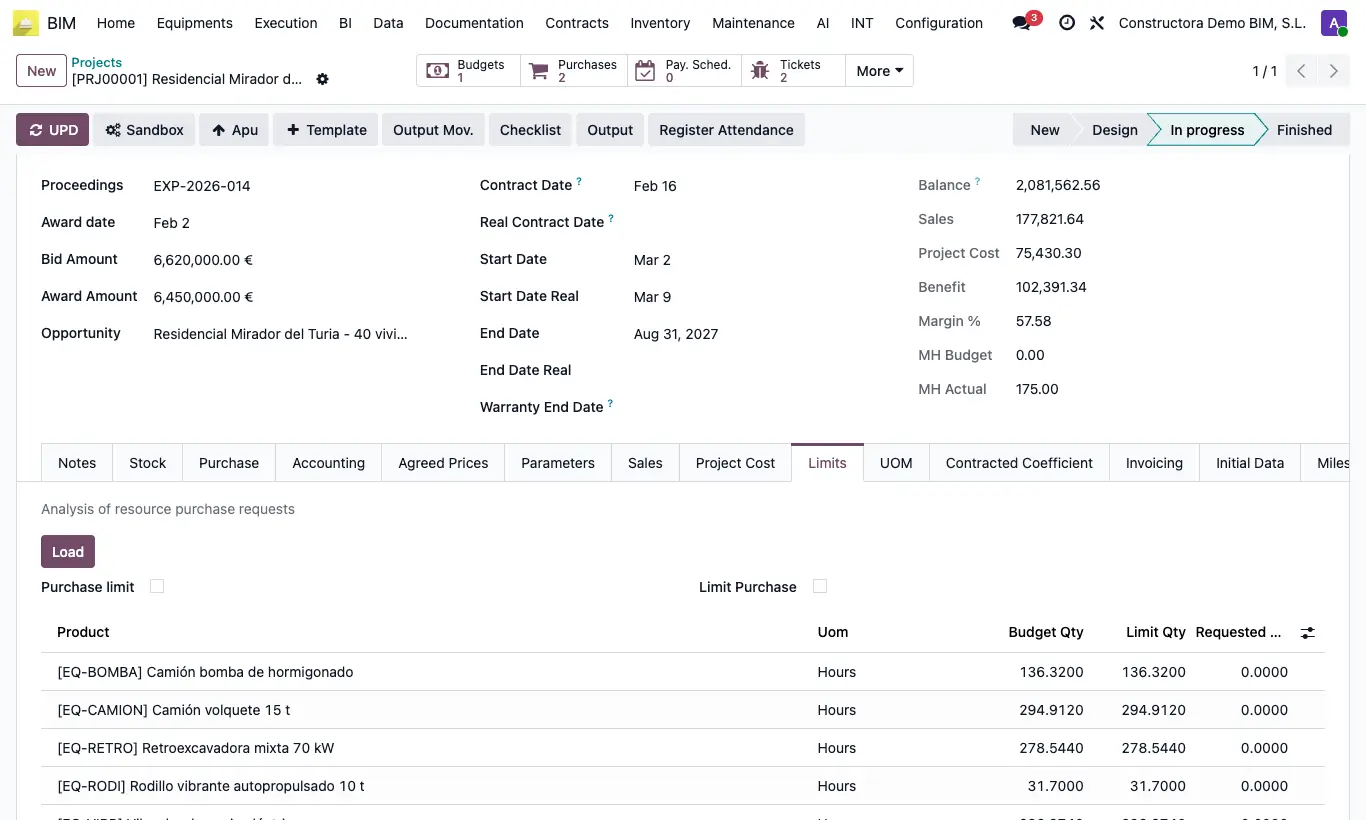
Steps
- Open the project and go to the Limits tab.
- Turn on Limit Purchase.
- From now on, when confirming an order with that project, each line is compared with the highest Cost of that resource in the project's budgets.
- If the order price is higher, you get “The maximum price of the product … is …. The purchase price must be lower than that price” and the order is not confirmed.
Warning
The check is only skipped if the user has both BIM Manager and BIM Purchase Without Limits; just one of the two is not enough.
Site note
For new projects to have it on by default, tick Limit Purchase in the BIM 2.0 settings, INVENTORY section.