Where BIM › Inventory › PPE › Deliveries
Deliver product user profile and Inventory as User. Products with the Tool box ticked.
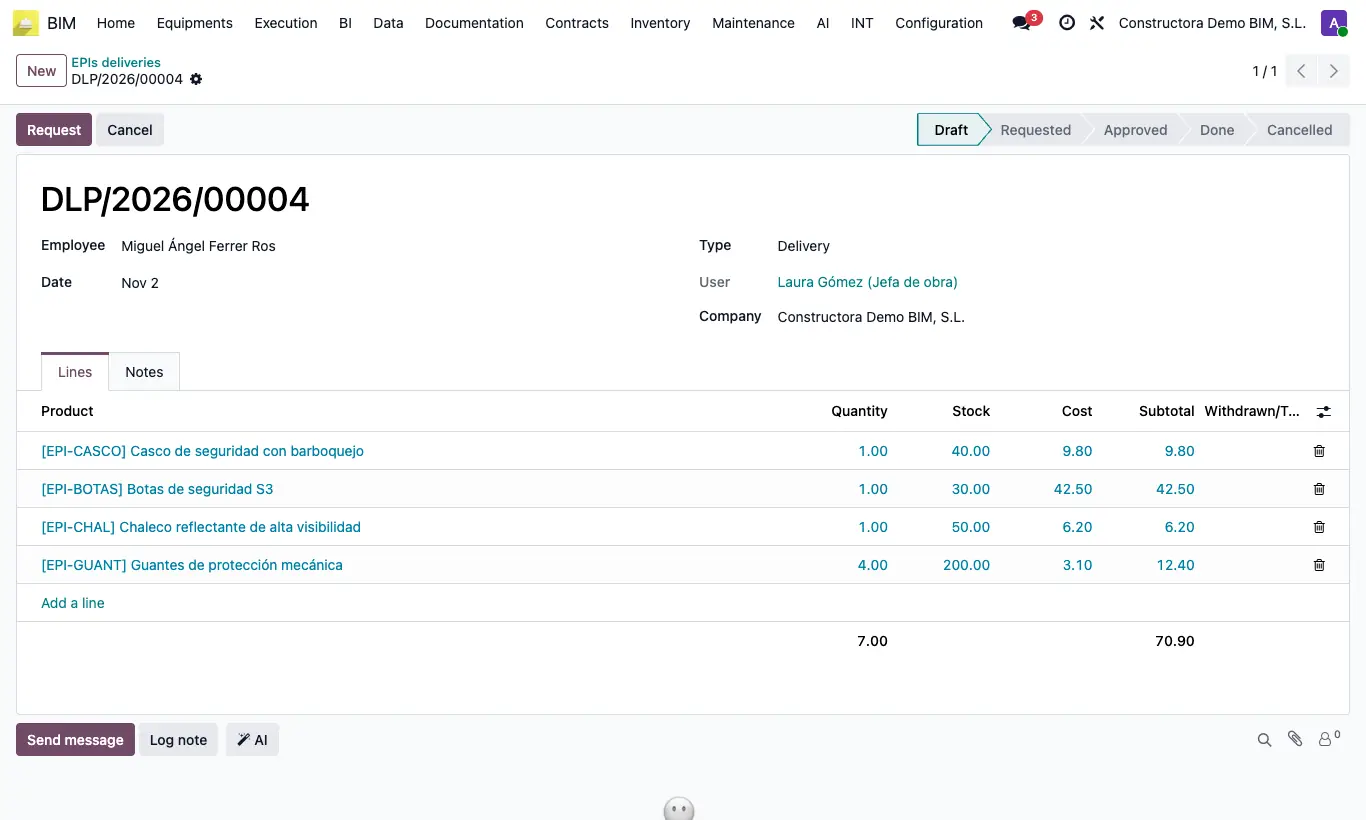
Steps
- Once only: on the company form (Settings › Users & Companies › Companies), Employee EPIs tab, choose the EPI deliver location: the warehouse PPE leaves from.
- On each employee's form, in the tab where Hour Cost and Code BIM are, choose their EPI Location: the inventory location that represents what they carry.
- Go to Inventory › PPE › Deliveries (the screen is titled EPIs deliveries) and click New. Choose the Employee and the Date.
- In Lines add each Product with its Quantity. The Cost is taken from the product cost and the Stock column shows the stock.
- Click Request and then Approve.
- Click Register movement: the delivery note is created and validated from the delivery location to the employee's EPI Location, and the document becomes Done. The delivery note appears in Picking.
Without EPI deliver location on the company or without EPI Location on the employee you get “You must configure the delivery location and the destination location”.
In Inventory there must be an internal operation type whose default source is the delivery location; otherwise you get “No internal operation type has been set for location …”.
A product without Maturity Days always shows as Expired.
Approve without lines warns “You must add products.”. Deliveries cannot be deleted: use Cancel and, to reuse it, Back to draft.
The Due date of each line is the delivery date plus the product's Maturity Days (on its form, next to the category). Expired lines show in red; show the Due date and Expired columns with the column selector.
Products marked Is asset and services are recorded but do not move inventory.
To see everything delivered, by employee or by product, use Inventory › PPE › Operations lines.
If the employee has no contact, one is created with their name when the movement is registered.