Where Budget › Email button
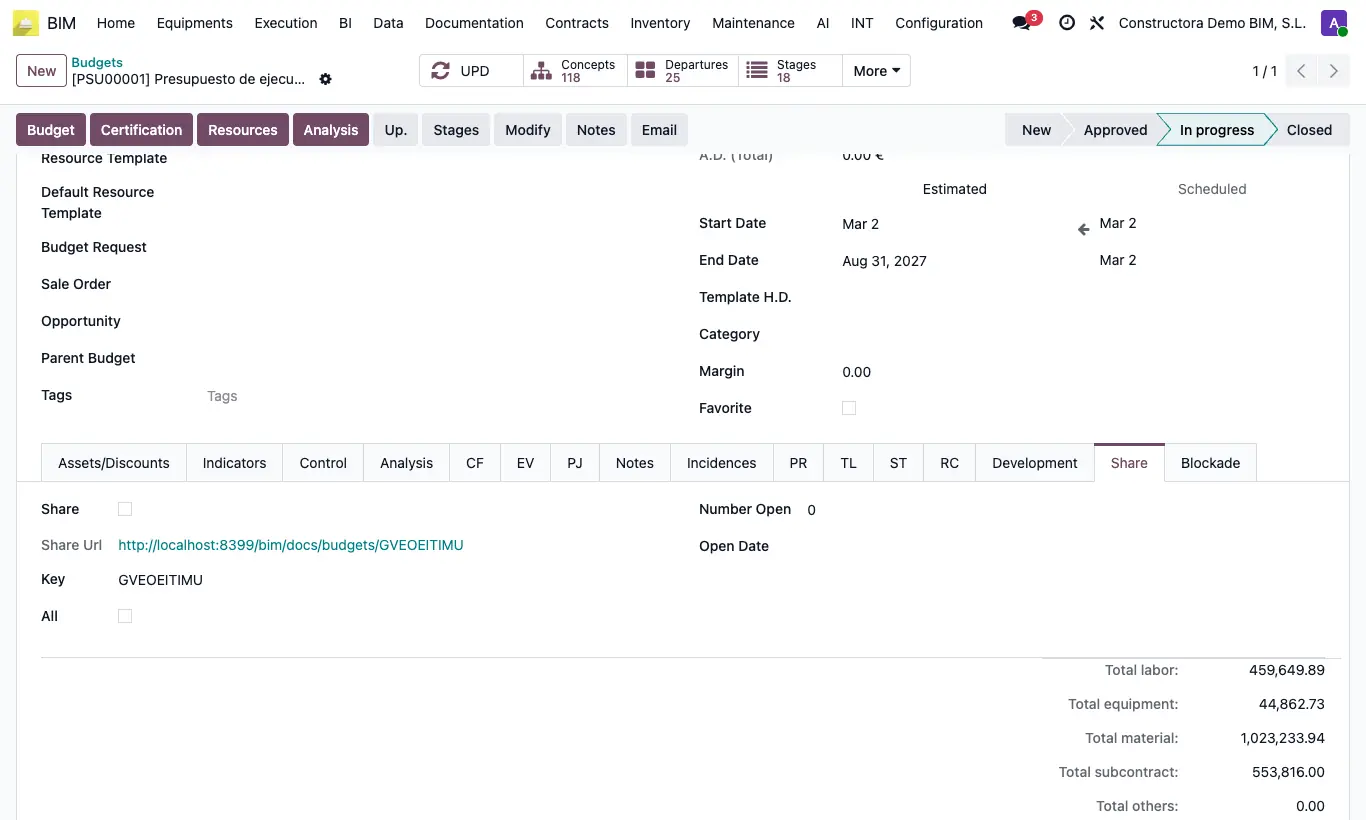
Steps
- Open the budget and click UPD.
- Click Email: the full budget PDF is generated and the email opens with the template and the PDF attached. Review and send.
- If you want a terms document, fill in the Notes tab (Header Notes and Budget Notes) and click Notes to print them.
- To share a link, go to the Share tab, check Share and copy the Share Url.
- Check All if the link should show chapters, items and resources; unchecked, it only shows the items with their sale price.
Warning
Anyone who has the link can see it without a username or password. Uncheck Share when it is no longer needed.
Site note
Number Open and Open Date tell you whether the customer has opened the link.