Where BIM › Execution › Programming › Resource Template
Before you start
Employees registered and, if you use them, PCP created in BIM › Data › Generals › PCP.
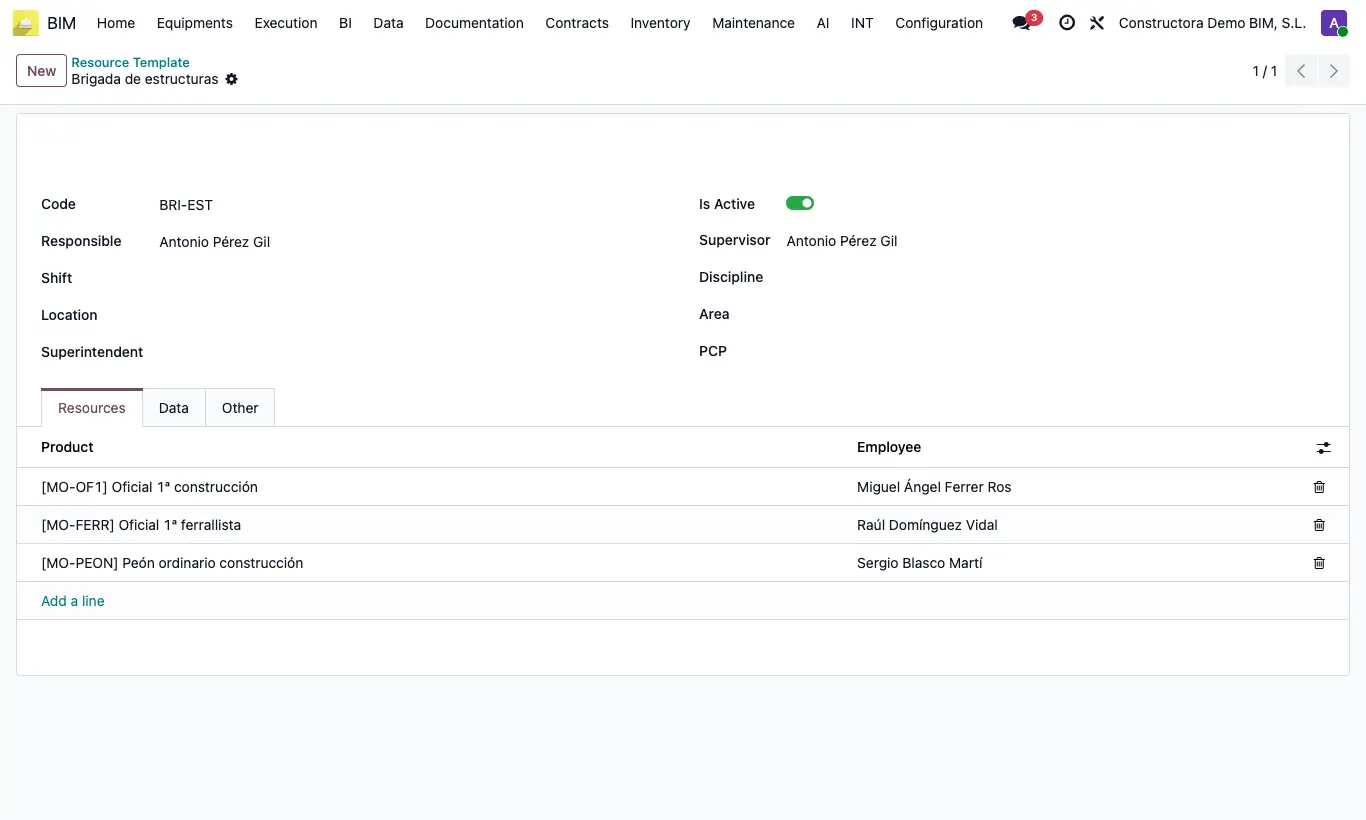
Steps
- Go to Execution › Programming › Resource Template and click New.
- In the header choose the crew's Product: Code and Name are filled in (Other tab). If you do not choose a product, enter them yourself: both are required.
- Set Responsible, Supervisor, Superintendent, Shift, Location, Discipline and Area.
- In PCP add the types of work the crew does: the report will generate one line per employee and PCP, and one progress line for each PCP.
- In the Resources tab add one line per person and choose the Employee.
- Leave Is Active ticked while the crew works and save.
Site note
If the crew has no PCP, the report creates a single line per employee with the Job Type (PCP) from their record.
The Daily Parts Reports lists all crews: that way you see which ones have not handed in a report.