Where BIM › Contracts › Contracts
Steps
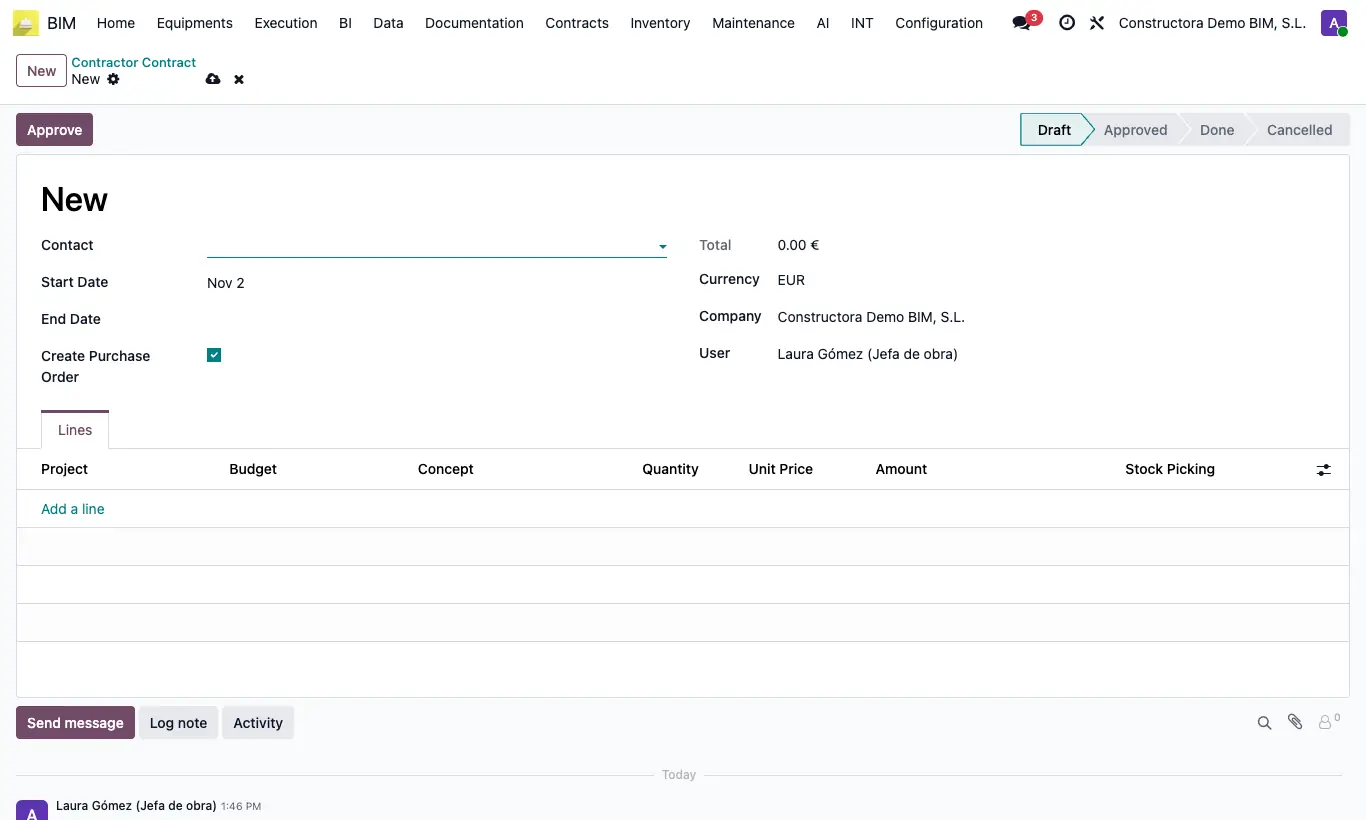
- Click New (or open one created by the Contract Generator).
- Choose the Contact (subcontractor), the Start Date and the End Date.
- In Lines add Project, Budget and Concept (item): the item's quantity, price and dates are proposed.
- Adjust Quantity and Unit Price to what was agreed; the Total is calculated automatically.
- Click Approve.
Warning
The contract does not generate a purchase order: the Create Purchase Order box has no effect.
Site note
To pay the subcontractor, record their progress with a progress capture (Create OC generates the purchase order) or issue the order and use the purchase valuation.
The Move button on each line prepares the transfer of the item's materials.