Where BIM › Inventory › Material Request › Purchase by Items
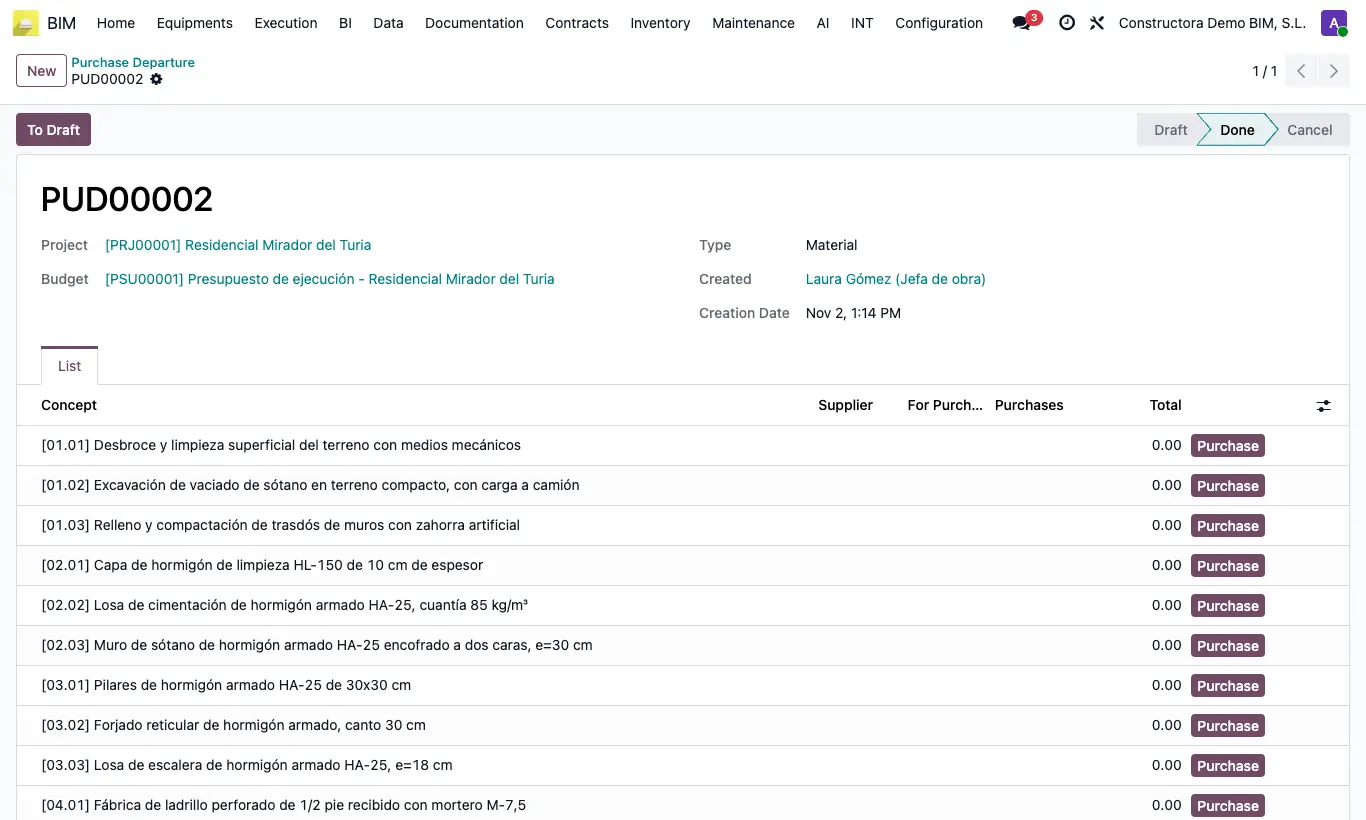
Steps
- Click New and choose the Project and the Budget.
- Choose the resource Type you are going to buy: Material (default), Labor, Equipment or All.
- Click To Done: the List tab is filled with one line per budget item.
- If you want a specific vendor for an item, choose it in its Supplier column; if you leave it empty, each resource goes to the first vendor on its product form.
- Click Purchase on the item's line: the orders are created (one per vendor) with the project and budget, and the line shows Purchases and the Total.
- Open the orders from Purchase › Orders, review them and confirm them.
Warning
If a product has no vendor on its form and the line has no Supplier, the order is created in your own company's name: change it in the order.
With Type All leave the line's Supplier empty: one order is created for each resource.
Nothing prevents clicking Purchase twice on the same item: duplicate orders would be created. Look at the Purchases column first.
Site note
The quantity of each resource is its quantity in the item multiplied by the item quantity.
The price is the vendor's price on the product form; if it has none, the resource's price in the budget or the product's cost.
To Draft and To Done again empties the list and reloads it with all the items; orders already created are kept.