Where BIM › BI › BI RO
Before you start
BI User or BI Admin profile. Items with Sub Phase.
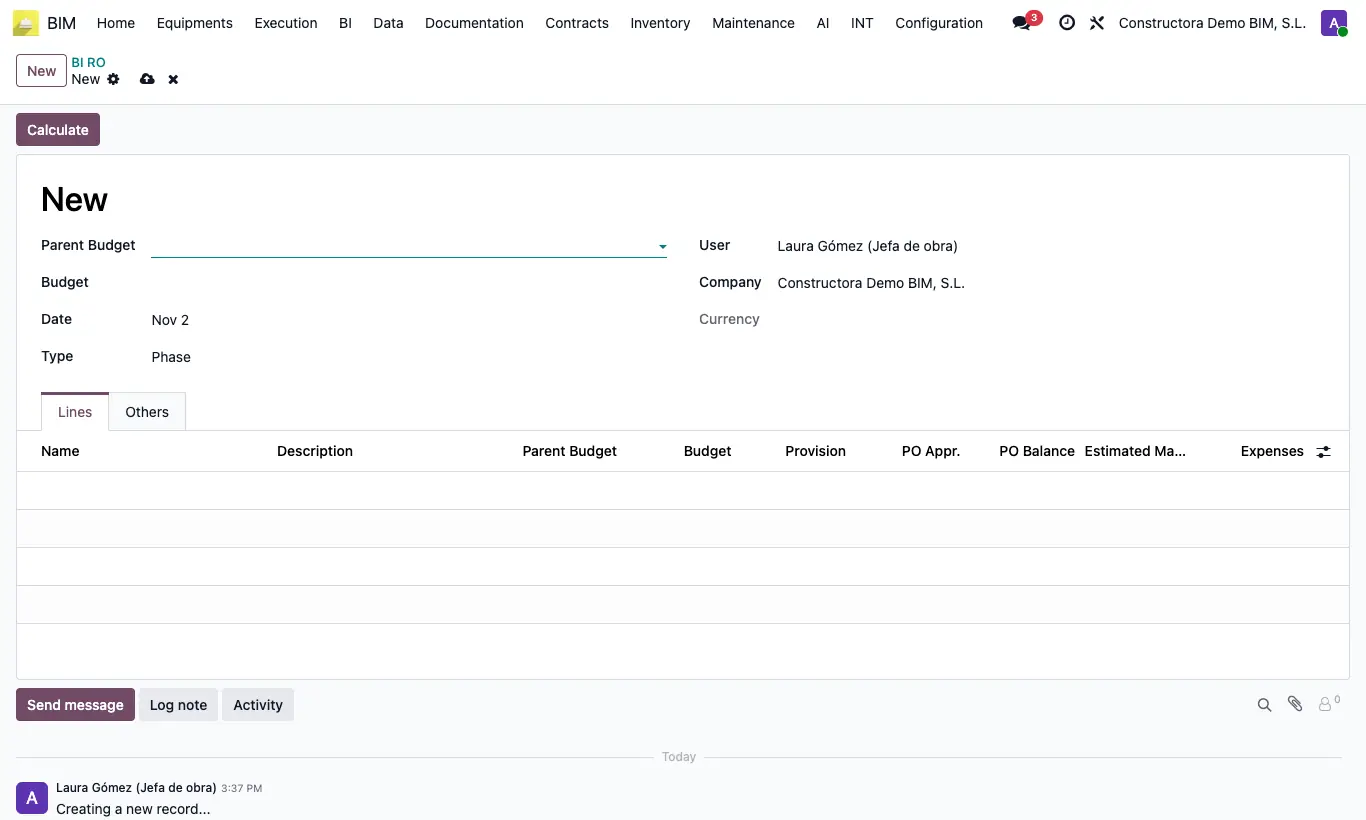
Steps
- Prepare the phases in Data › Generals › Concepts Phase with the RO box ticked, and assign a Sub Phase to the items of both budgets.
- Go to BI › BI › BI RO and click New.
- Choose the Parent Budget (for example, the contract one) and the Budget you want to control (for example, the execution one).
- Click Calculate: one line per sub phase appears with Parent Budget, Budget, Provision, PO Appr., PO Balance, Estimated Margin and Expenses.
- In the Others tab, click Invoices Without Phases to see the vendor bills with lines without a phase, and choose an Obj Budget and click Concepts Without Phases to see its items without a sub phase.
Warning
PO Appr. adds up the confirmed purchase order lines of the Budget's project that have that phase. Expenses only counts posted vendor bills included in BIM of that same project.
Items without Sub Phase are accumulated in an unnamed line. Each Calculate deletes and rebuilds the lines.