Where BIM › Data › Attendance › Massive attendance
Before you start
Supervisor profile: manage attendance.
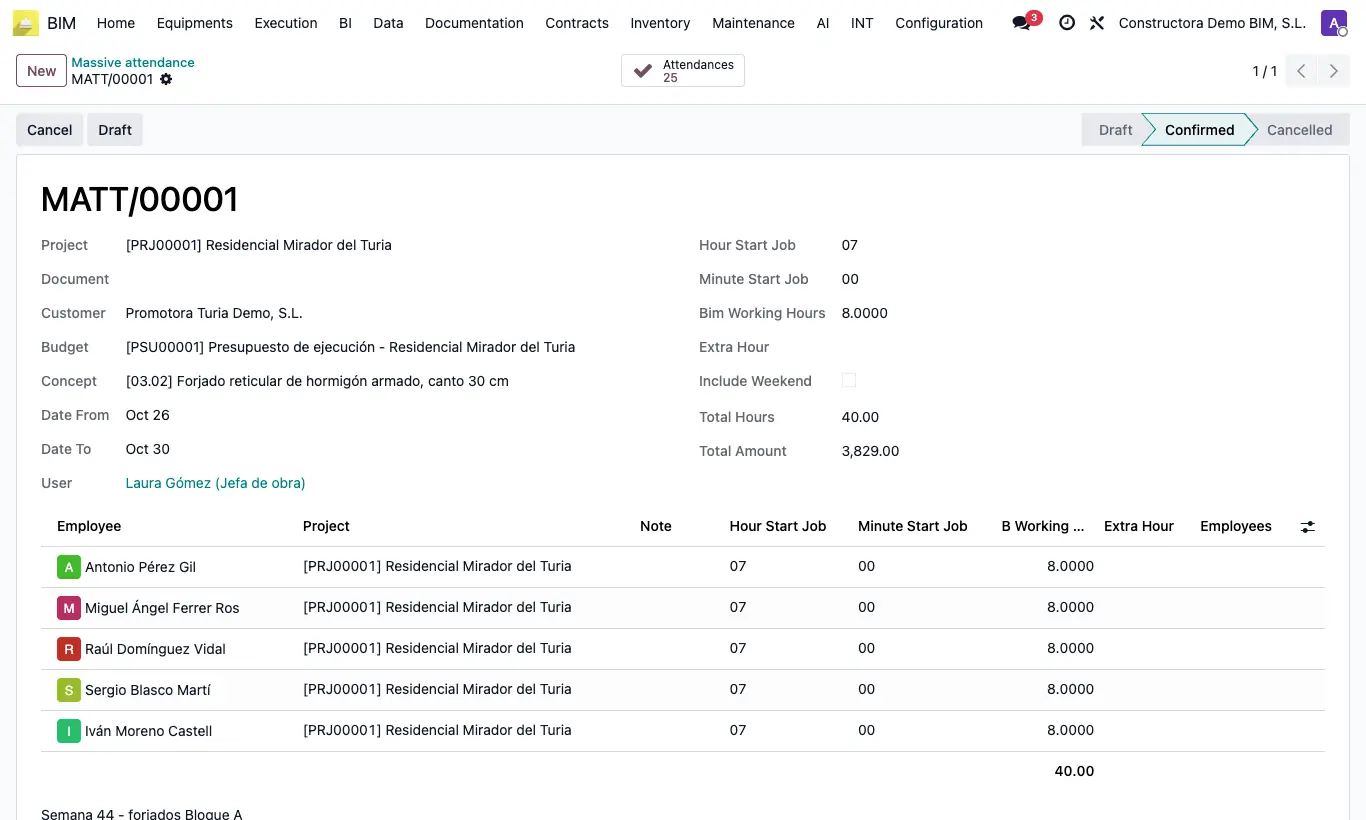
Steps
- Go to Data › Attendance › Massive attendance and click New.
- Choose the Project: its employees are loaded (those with that project as Default Project, those who have it in the Projects tab of their form and those assigned to the project). If you want, choose Document, Budget and Concept.
- Enter Date From and Date To, Hour Start Job, Minute Start Job, Bim Working Hours and, if applicable, Extra Hour and Include Weekend.
- Check the lines: add or remove employees and adjust on each one the time, the B Working Hours or a Note.
- Click Validate Attendance: one attendance record per employee and day is created, the document changes to Confirmed and the project's amounts are recalculated.
- With the document's Attendance button you see the attendance records created.
- If you made a mistake, click Draft (or Cancel) and confirm the notice: the attendance records the document generated are deleted. Correct and validate again.
Warning
Changing the Project replaces all lines with the employees of the new project: choose the project before adjusting the lines.
Draft and Cancel from Confirmed delete the attendance records created by the document, even if you had corrected them by hand.
Site note
From the list you can validate several at once: select them and use Action › Confirm Attendance.