Where BIM › Contracts › Contract Analysis
Before you start
Progress captures recorded in BIM › Contracts › Progress Captures.
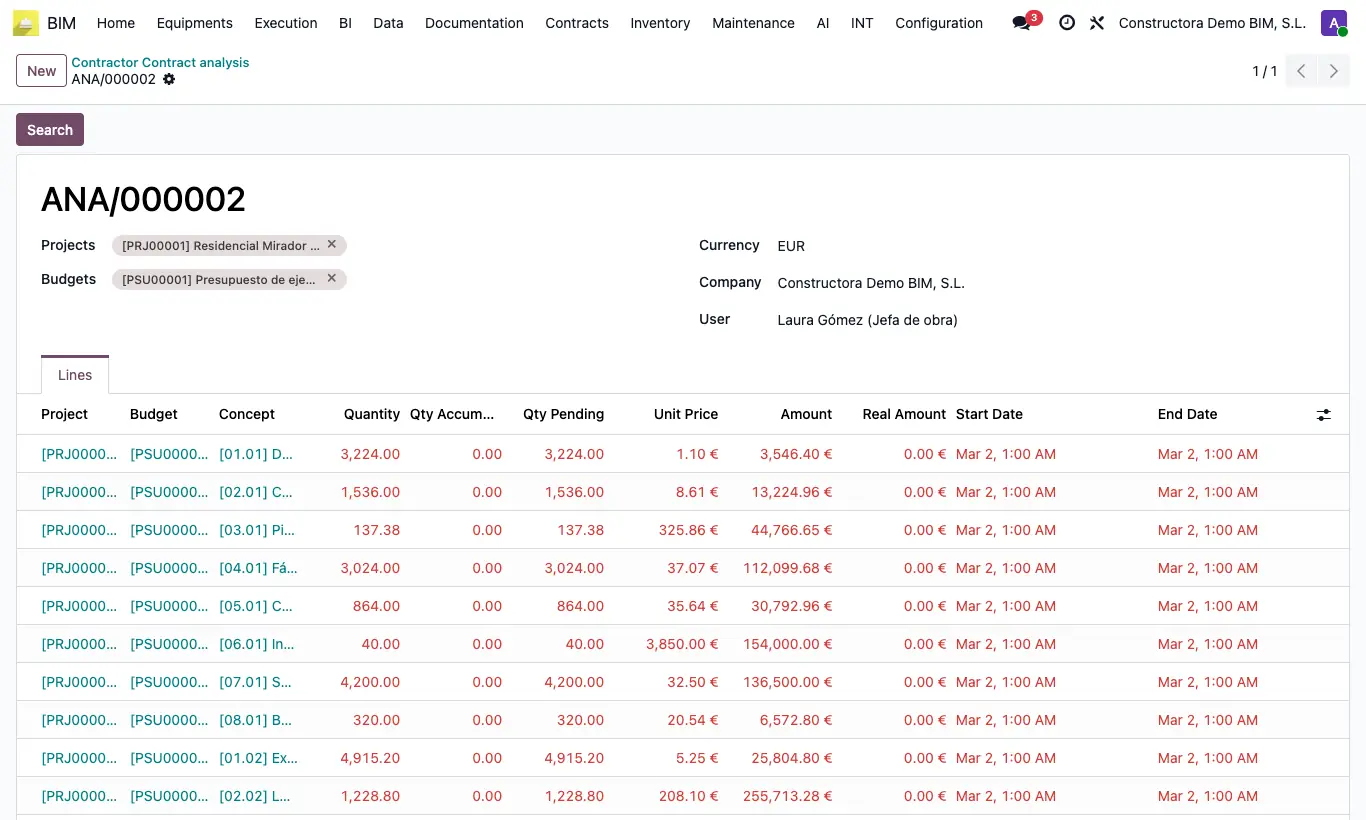
Steps
- Click New and choose one or more projects in Projects: Budgets is filled with all their budgets. Remove the ones you do not want or choose budgets only.
- Click Search: one line appears per item of those budgets.
- Read the columns: Quantity and Amount from the budget, Qty Accumulated and Real Amount from the captures, Qty Pending, Start Date, End Date and Real Date (that of the last capture).
- Look at the Status: On Time (green) or Late (red) if the Real Date is after the item's End Date.
Warning
Without a project or budget you get “You must select at least one project or one budget”.
Qty Accumulated adds up all the item's captures, including those still in draft.
Site note
An item without captures takes the moment of calculation as its Real Date: if its end date has already passed, it shows as Late.
Items without dates show as On Time. If they have no End Date, it is compared with the Start Date.
Each Search deletes and rebuilds the lines: repeat it when you record new captures.