Where BIM › Config › Config
Before you start
BIM Manager profile and Admin Role.
Steps
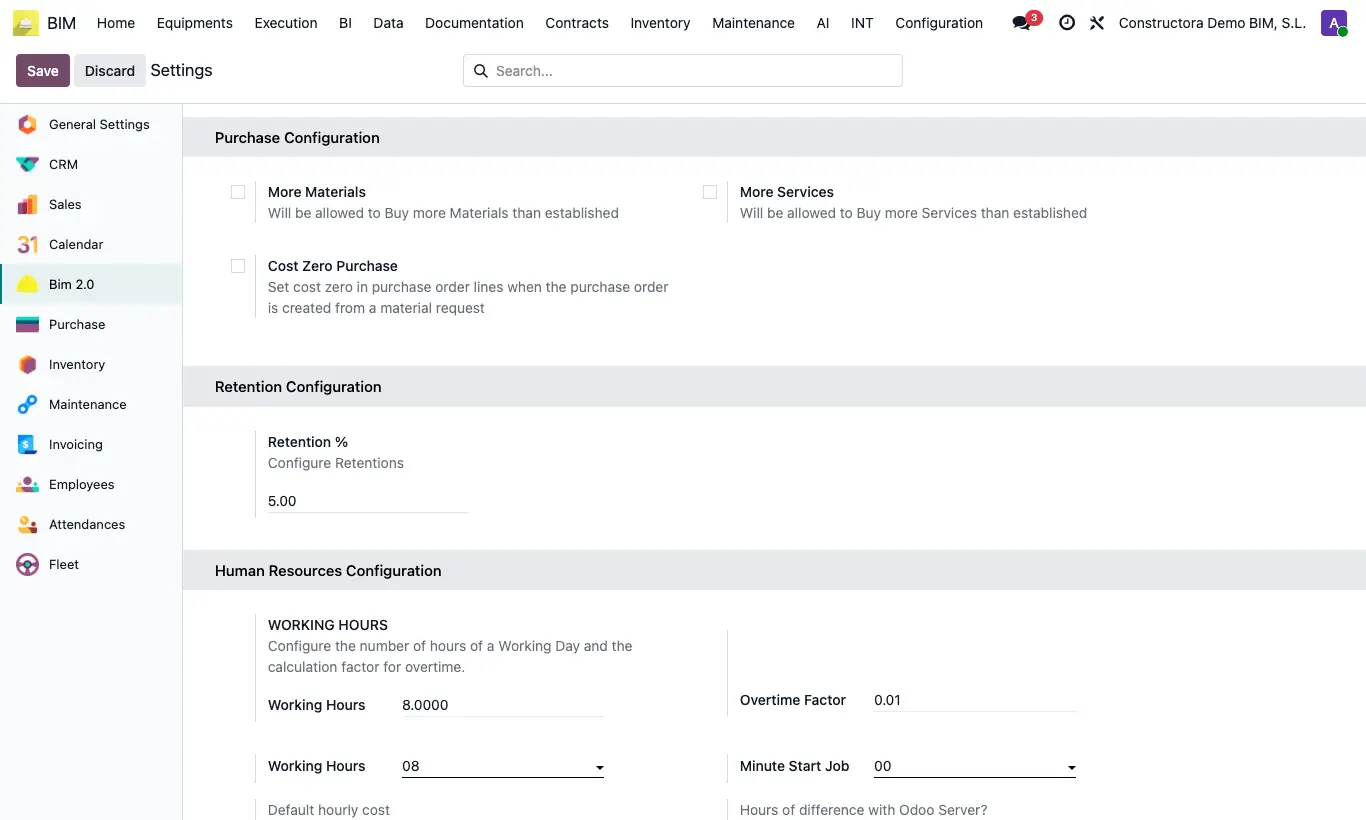
- Open the Bim 2.0 settings and scroll down to Purchase Configuration.
- More Materials and More Services: default value of Allow to Buy More in material and service requests, which allows ordering more than budgeted. Cost Zero Purchase: orders created from a material request carry a zero price.
- In Retention Configuration, Retention % is the retention percentage (5% by default) that new projects receive.
- In Human Resources Configuration: Working Hours (hours in a working day) and the hour and Minute Start Job, which the attendance wizards propose.
- Default hourly cost: hourly cost of new employees. Hours of difference: time offset from the server, used when importing attendances and calculating durations.
- Click Save.
Warning
Overtime Factor is not used in any calculation.
The two start-time boxes appear with the same Working Hours label: the second one is the start hour, not the hours of the day.