Where BIM › Data › Concept Template › Concept Template
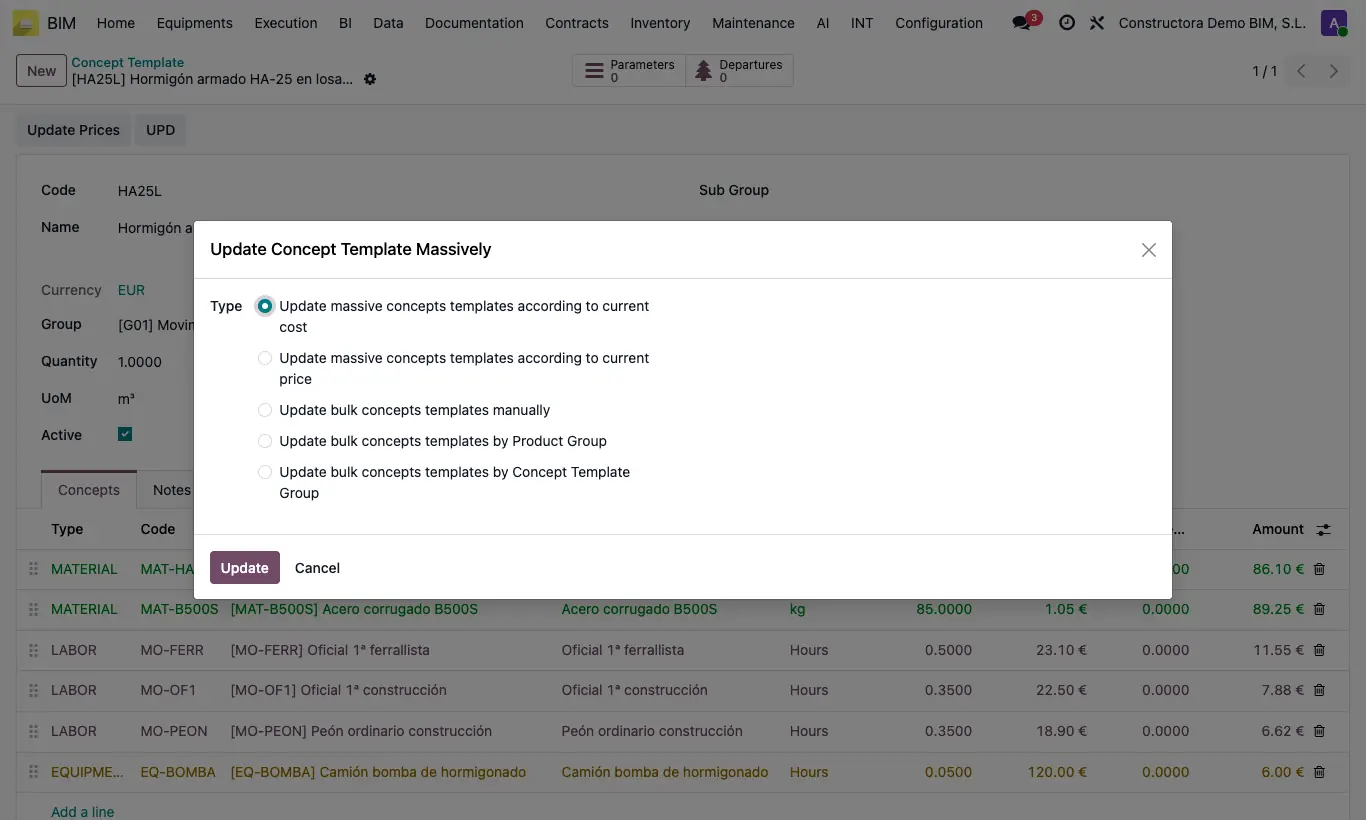
Steps
- For a single unit price, open it and click Update Prices. For several, tick them in the list and click Action › Update Concept Template Massively.
- Choose Update massive concepts templates according to current cost (each line takes the Cost of its product) or Update massive concepts templates according to current price (it takes the Sale Price).
- To raise or lower by a percentage, choose Update bulk concepts templates by Product Group (enter the product Group) or Update bulk concepts templates by Concept Template Group (enter the Template Group).
- In those two options, write the percentage in Price New.
- Click Update.
Warning
The percentage is the final value, not the increase: 110 raises by 10%, 90 lowers by 10% and 10 leaves the price at one tenth.
The current cost and current price options only change MATERIAL, MANO DE OBRA and EQUIPOS lines. SUBCONTRATO and FUNCIÓN / ADMINISTRATIVO lines do not change.
Updating the library does not change budgets already made. In the budget use Up. › Update from APU.