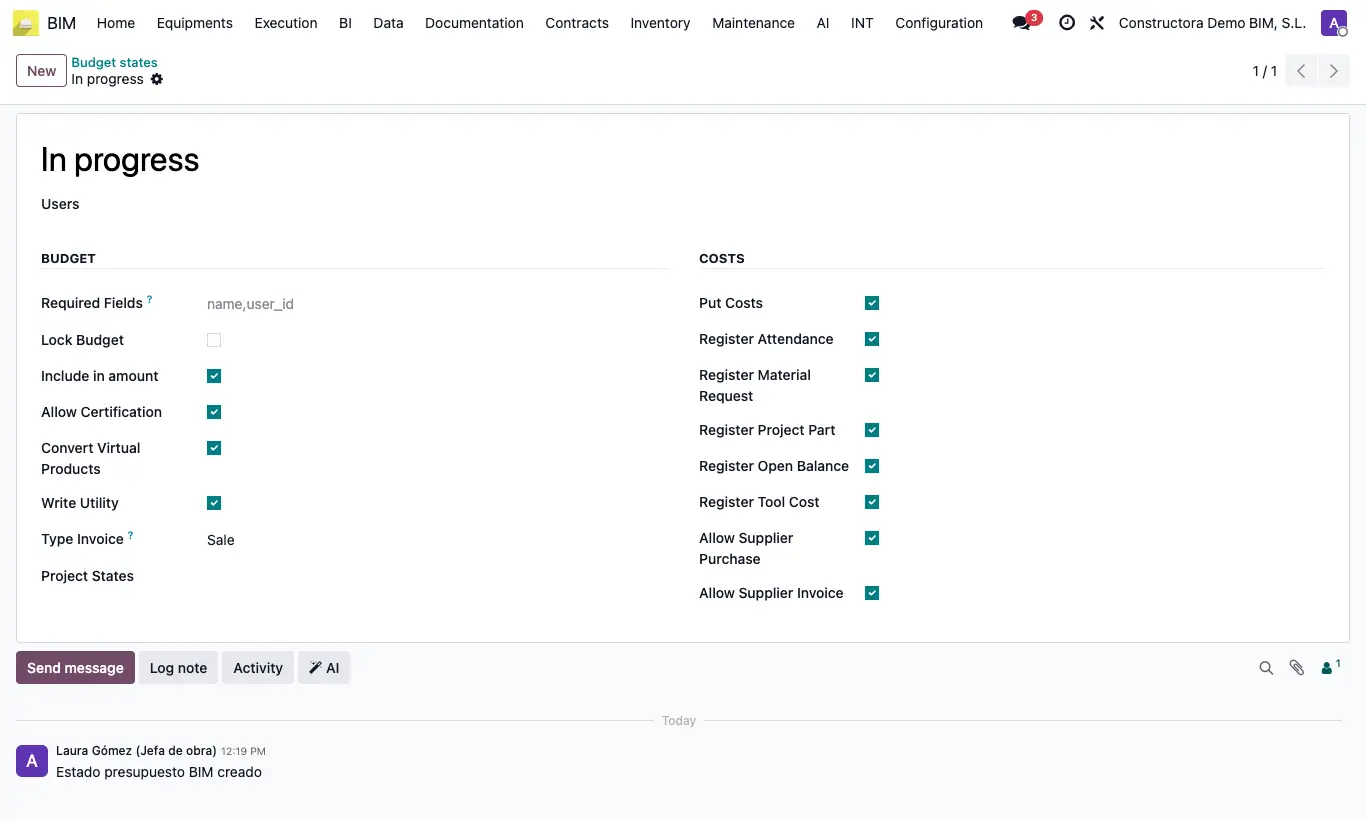
Steps
- Keep in mind that anyone with the BIM app can create and modify the projects and budgets they see: BIM 2.0 has no read-only profile.
- Limit what they see: give them only BIM User see owner documents and set them as Supervisor only on the projects they need to consult.
- Limit what they can do: do not give them BIM Certification, BIM Paidstate, BIM Delete or BIM Manager.
- Protect closed budgets with a state that has Lock Budget: nobody can create, modify or delete their items.
- Fill in Users on the states so only certain people can change them.
- For management, BI User is read-only: they see the dashboards but do not design them.
Site note
For someone without a user account to view a budget, tick it in Share › Share and send them the Share Url; in Number Open you see how many times it has been opened.